![Main.png]](https://knowledge-hub.greyparrot.ai/hs-fs/hubfs/Main.png?height=40&name=Main.png)
Configuring users
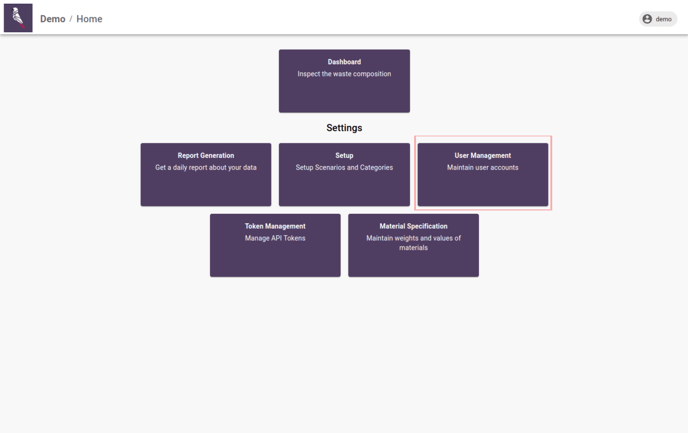
As an admin, you can add additional users to your portal. All users can access the dashboard to inspect waste composition data, but only the administrator can adjust dashboard settings and configuration. Click on the ‘User Management’ tile:
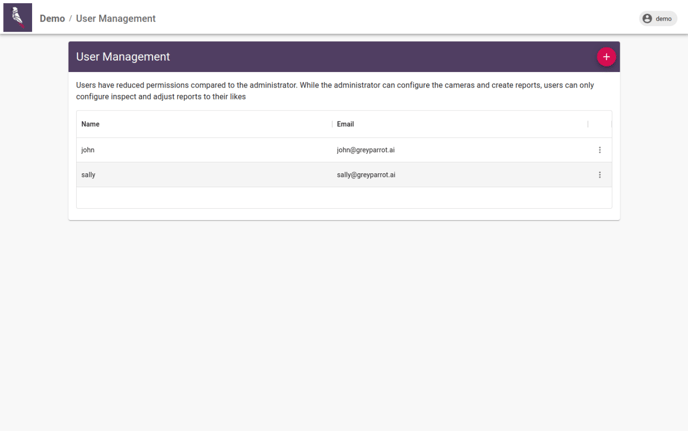
Here, you can create new users, or rename and delete existing ones:
Once you’ve made adjustments, click ‘Done’.
Creating roles
Once you’ve added your users, click on the ‘Roles’ tab:
%20(4).png?width=688&height=430&name=dashboard-demo.greyparrot.ai_login(MacBook%20Air%202017)%20(4).png)
Click ‘Create role’ to define a new type of user, or click the three dots next to an existing role to edit it:
.png?width=688&height=430&name=dashboard-demo.greyparrot.ai_login(MacBook%20Air%202017).png)
Name your role, then select the ‘Permissions’ you’d like assignees to have. For example, an ‘Admin’ role may need access to more functions and views than a ‘Dashboard User’, who would only require the ‘Access to the waste composition dashboard’ permission:
%20(1).png?width=688&height=430&name=dashboard-demo.greyparrot.ai_login(MacBook%20Air%202017)%20(1).png)
Assigning roles
To assign a role to your users, navigate back to the ‘Users’ tab. Click the three dots to the right of their email address, and select ‘Assign roles’:
%20(2).png?width=688&height=430&name=dashboard-demo.greyparrot.ai_login(MacBook%20Air%202017)%20(2).png)
Manage and un-assign existing roles, or click ‘Add role’ to assign a new one:
%20(3)%20(1).png?width=688&height=430&name=dashboard-demo.greyparrot.ai_login(MacBook%20Air%202017)%20(3)%20(1).png)
Once you’ve made adjustments, click ‘Save’.