![Main.png]](https://knowledge-hub.greyparrot.ai/hs-fs/hubfs/Main.png?height=40&name=Main.png)
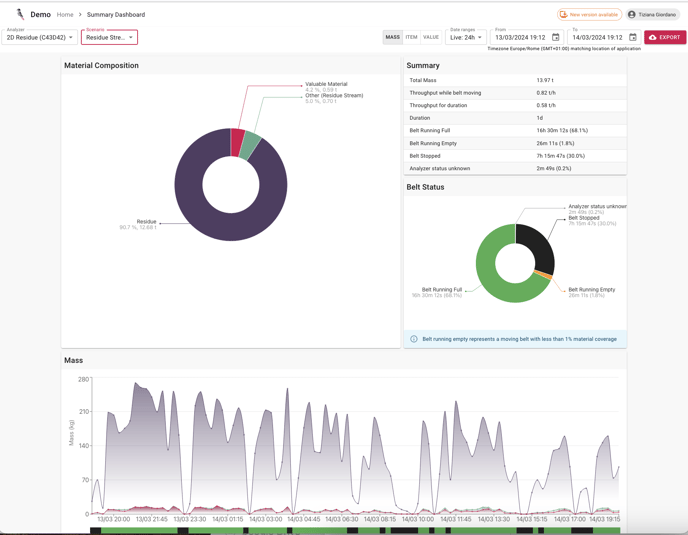
The Greyparrot Summary Dashboard serves as an additional display to the primary dashboard. It summarises the data for your selected time period, providing a top-level overview to complement more detailed views of waste composition.
Just like the primary dashboard, you can adjust the Summary Dashboard using the same application, scenario, metric and time selectors at the top of the screen.
Here's how it looks:
How to create a summary
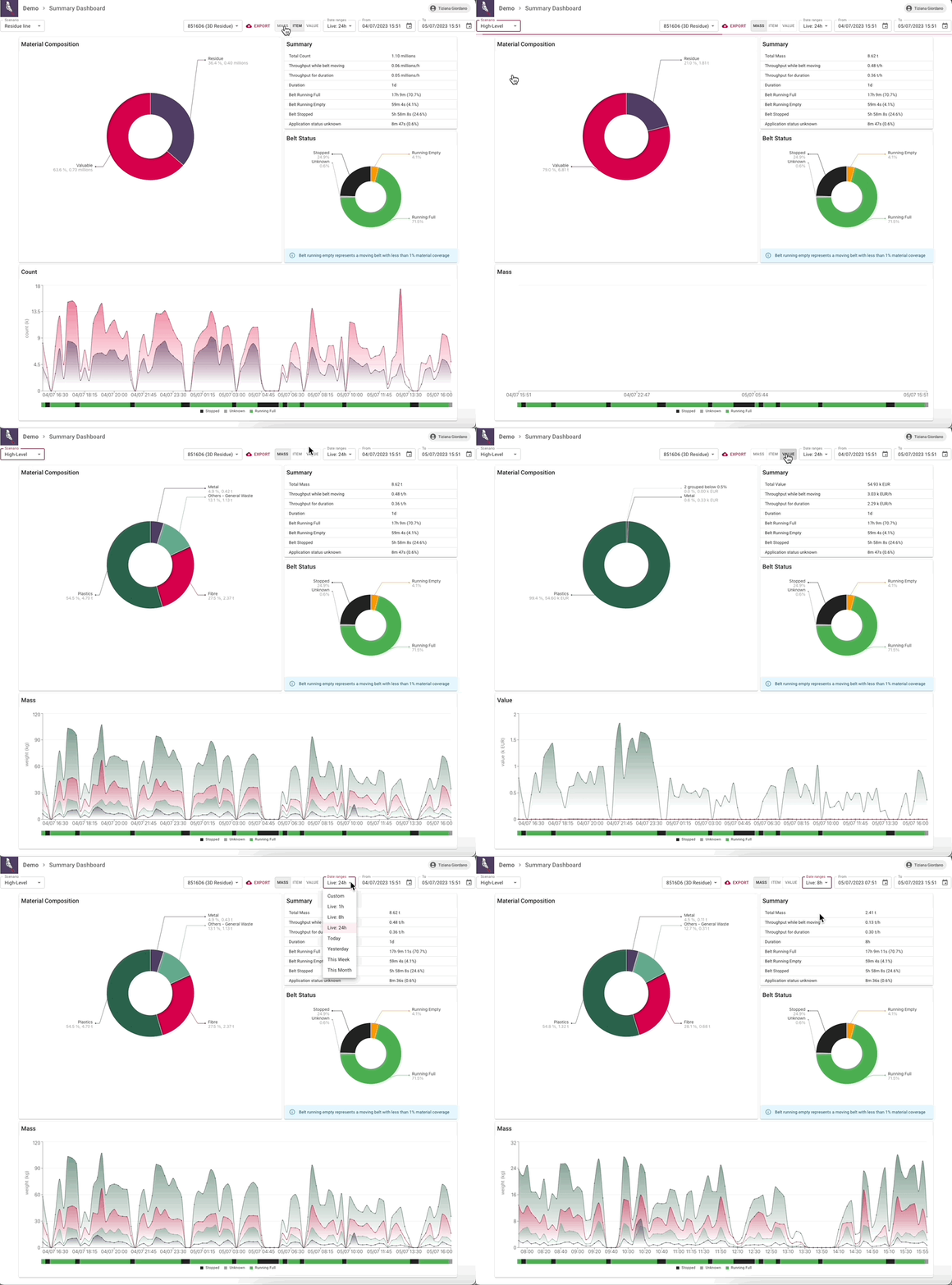
To surface the data you need in just four steps:
- Select your application
- Select the relevant scenario
- Select your metrics: mass or item, count or value
- Select the time period you want to summarise
How we generate the Summary Dashboard
Material composition chart
- Small categories: If one (or several) categories in your scenario individually represent less than 0.5% of total waste, they will be grouped into one block on the chart. You’ll see a summary label indicating how many categories were below this threshold.
- Scenarios without all waste classes: If your scenario only includes some of the material types in your waste stream, the summary chart won't include the materials outside your scenario.
As a result, the report may not include every material that passes under the camera.
When our system detects the selected scenario does not include all material types, you'll see this warning message:
“Selected scenario does not include all materials. Some materials and their mass may not be included in the data below.”
💡 Create a complete summary
You can correct this warning by selecting another scenario, or by updating the one you've chosen to include all of the material classes in your facility. For a reminder on setting up scenarios, click here.
Summary table
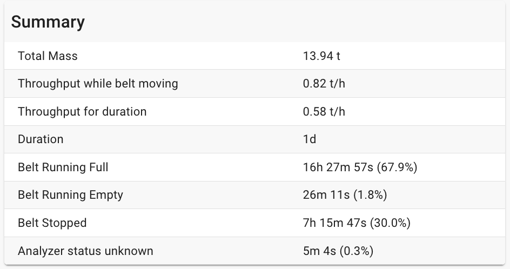
The summary table shows:
- Total mass/item count/value: the total mass, item count or value of the waste our system recognises during the selected time period. This will change depending on the metric modes you’ve selected.
- Throughput while belt moving: Total mass or item, count or value ÷ (Belt Running Full + Belt Running Empty)
- Throughput for duration: Total mass or item, count or value ÷ Duration
- Duration: the length of the selected time period.
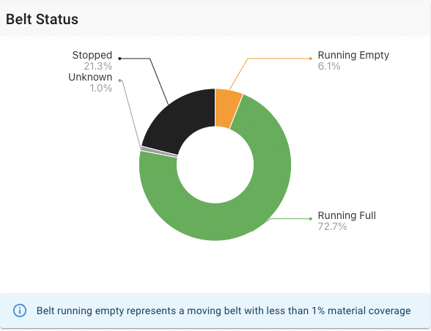
- Belt Running Full: The total time our system recorded a moving belt with more than 1% coverage by items on the belt.
- Belt Running Empty: The total time our system recorded a moving belt with less than 1% coverage by items on the belt
- Belt Stopped: The total time our system recorded a non-moving belt.
- Application offline: The total time our system was known to be offline (no data received).
- Application status unknown: Total time since our system (the ‘application’) last reported data to the platform.
- For applications with poor internet connectivity, this time can often be backfilled once the application comes back online.
- For situations where the box is offline or in an error state but has not yet reported it, these time periods will be classified as offline once the box regains connection.
Belt status chart
A visual representation of the time spent in each of the above states:
Metric chart
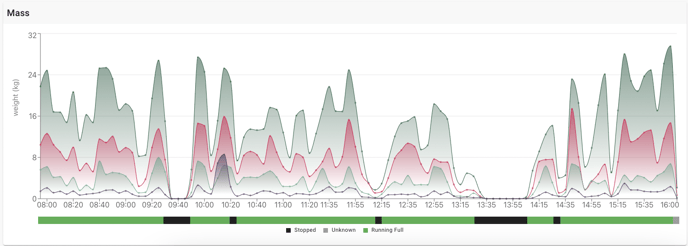
Depending on the metric mode you’ve selected, the bottom panel will show mass, item count or value over time.
This is a summary view of the data captured over the time period selected, broken down by the scenario you’ve chosen:
Belt and application status
Below the metric chart above is a belt/application status bar that shows how belt status and material data align – similar to the primary dashboard.
Exporting your summary
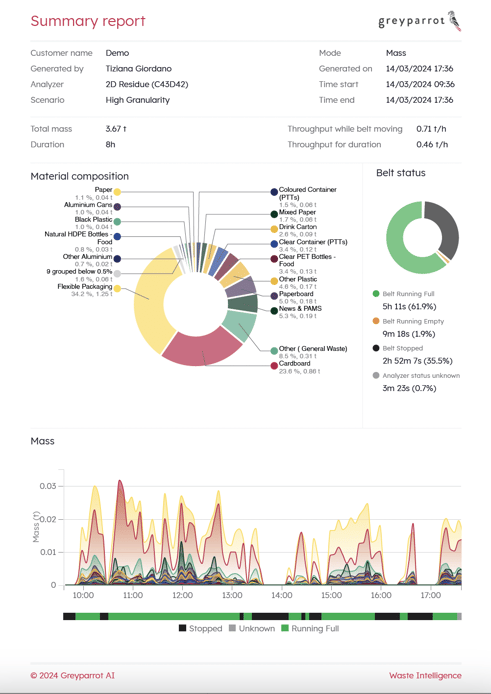
You can save your data digest or share it with your colleagues with the click of a button. Click the Export button (next to the scenario selector at the top of the screen), and you'll automatically download a PDF summary of the dashboard like the one below: